11 min to read
Before You Buy a Mesh System: How I Fixed a Friend's Wi-Fi With Hardware He Already Owned
Turn a spare router into a second Wi-Fi radio with the same SSID, one DHCP server and no new hardware

A friend called me about his bungalow. The Wi-Fi was fine near the router and nearly useless in a couple of rooms. His first instinct was to order a mesh kit. Before he spent the money, I asked a different question: what routers do you already have lying around?
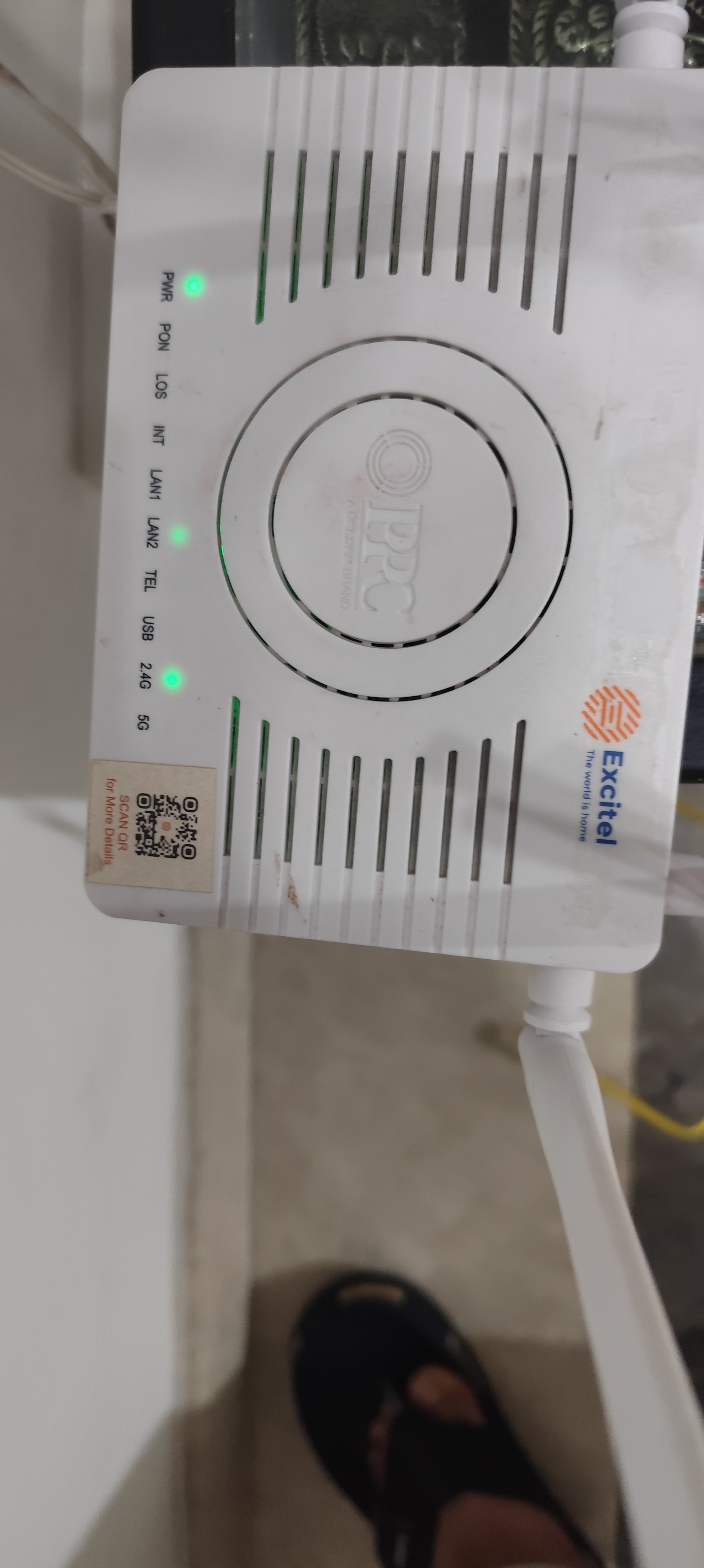
The answer was an Excitel PPC 2K15X, a GPON ONT router left over from a previous connection, sitting unused. His live connection was ACT Fibernet with a TP-Link router. So the plan was to put the spare to work as a second Wi-Fi radio, with the same network name and password, so phones and laptops move between the two without anyone typing a new password. It worked, and his devices now connect across the dead zones without him doing anything. This post covers the design decision, the exact steps, and the mistakes worth avoiding if you try the same thing. The keywords if you’re searching: Excitel router as access point, ACT Fibernet, same SSID, Wi-Fi dead zones.
What are we actually trying to build?
Requirements, written the way I’d write them for a client:
| Requirement | Detail |
|---|---|
| Single SSID | One name and one password across both routers |
| Single subnet | All devices stay on 192.168.0.0/24, so casting, printers and NAS keep working |
| One DHCP server | ACT stays the only router and address authority |
| No extra hardware | Reuse the Excitel unit as-is |
| Better coverage | Signal in the far rooms, without a new ISP link |
Constraint worth stating up front: the Excitel unit is an ONT with a PPPoE WAN profile built for Excitel’s network. It has no role in ACT’s fiber. Its PON port shows “No signal” here, and that is expected. Also, the spare gear is the only budget: no new purchases, and no rewiring beyond one LAN cable.
Which design should you pick: mesh, repeater or wired access point?
I evaluated three options before touching a config page.
| Option | Needs from the Excitel unit | Throughput | Verdict |
|---|---|---|---|
| EasyMesh (true mesh) | An Agent/Extender role | Best | Not possible |
| Wireless repeater | Repeater or Client+AP mode | Roughly half, because the radio does double duty | Not offered |
| Wired access point | Disable DHCP, static IP, matching Wi-Fi | Full line speed | Chosen |
| Example gear | TP-Link EasyMesh nodes, Deco | Any router with an AP mode | Excitel PPC 2K15X as AP |
Bottom line: if you can run a cable, a wired access point beats both alternatives on speed and stability, and it works on almost any router.
Here’s how I ruled out mesh. ACT’s TP-Link router has an EasyMesh page and acts as the Controller. Mesh would need the Excitel unit to join as an Agent. Its own EasyMesh Interface Setup page offers only two roles: Controller or Disabled. No Agent. So there is no way for it to join, and I wasted no time on WPS pairing (it’s disabled on that unit anyway).
I’ll admit I first assumed the ACT router did not support EasyMesh at all. The Mesh page in its admin UI proved me wrong. It didn’t change the answer, because the weak side was the Excitel unit, but it’s a good reminder to read the screen instead of guessing.
What does the final architecture look like?
[ISP fiber] --> [ACT ONT/router, TP-Link]  192.168.0.1  (router, DHCP, NAT)
                       |
                  Cat5e/Cat6 cable
                       |
              LAN1 --> [Excitel PPC 2K15X]  192.168.0.250  (AP only, DHCP off)
                       |
          Same SSID, same WPA2-AES key, different channels
The Excitel unit’s WAN side is unused. Its LAN ports and its radios do the work. Traffic from any phone on its Wi-Fi goes through the cable and gets a lease from ACT. As far as the rest of the network is concerned, it’s just another switch port with radios attached.
Phase 0: Record ACT’s wireless settings before you change anything
Nothing breaks if you skip this, but you will waste time later. Log into the ACT router at 192.168.0.1 and write down, for both 2.4 GHz and 5 GHz:
- SSID
- Security type
- Password
- Channel in use (if it says Auto, check the wireless status page for the actual channel) You’ll match the first three on the Excitel unit and deliberately differ on the fourth.
Also check ACT’s DHCP pool. In this house it was 192.168.0.2 to 192.168.0.249. That matters in the next phase.
Phase 1: Prepare the Excitel unit with the cable unplugged
This order matters. If you plug in the cable first, you’ll have two DHCP servers on one network, and half your devices will get the wrong gateway.
Step 1: Connect to the Excitel unit’s own Wi-Fi. The default network name is on the underside sticker (PPC followed by a few characters). Open 192.168.1.1 and log in.
Step 2: Use the right login. The unit had two logins with different menus. One showed Network, WLAN, Security, Admin and Diagnostics. The other showed only Status, WLAN, Security, Admin and Diagnostics, with no Network menu. You need the first one. The LAN settings only exist there.
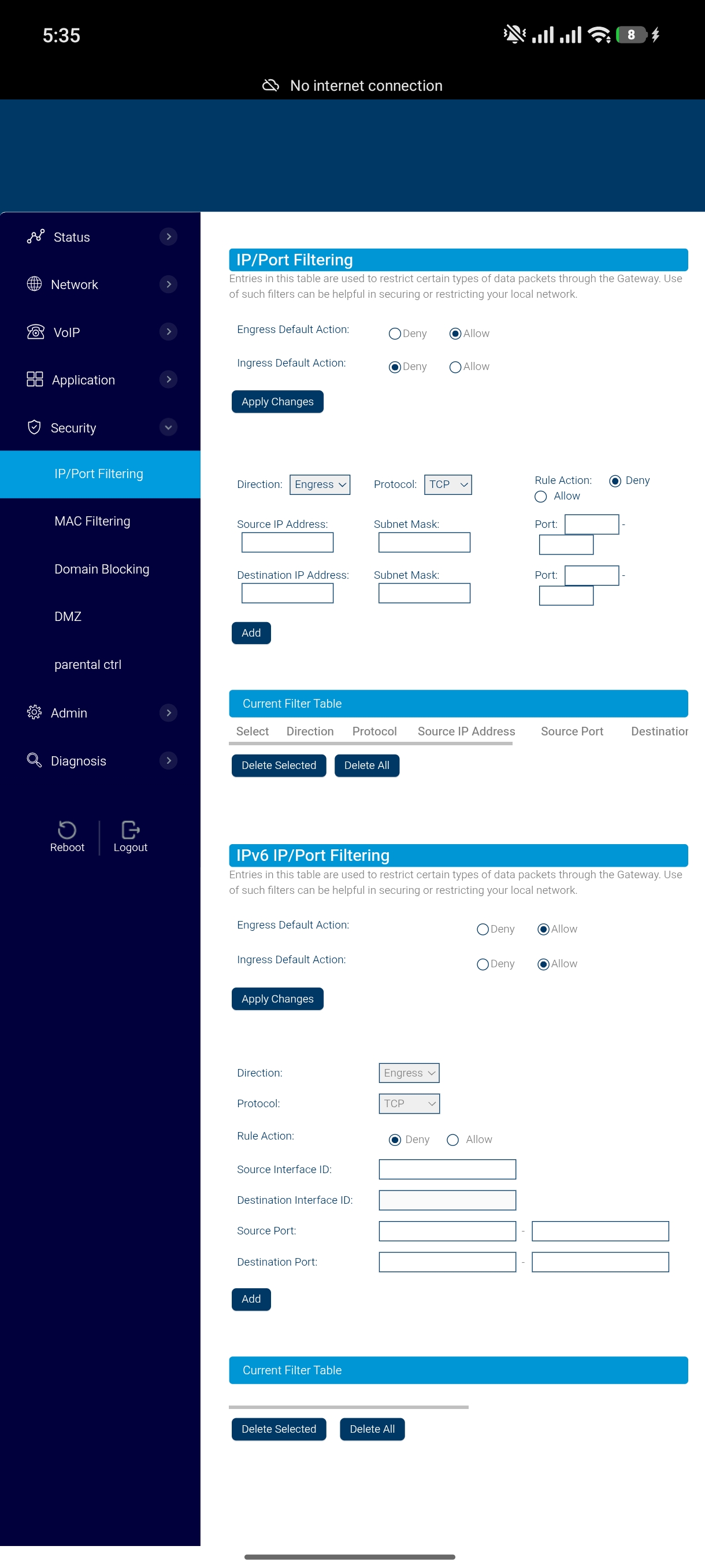
Step 3: Turn off IPv6 router advertisements. Go to Network > LAN > IPv6.
- RADVDEnabled: off, then Apply Changes
- DHCPv6 Mode: NONE, then Apply Changes Most guides skip this. If you leave it on, the Excitel unit keeps advertising itself as an IPv6 router and some devices will pick up its address and lose connectivity in odd ways.
Step 4: Turn off the DHCP server. Go to Network > LAN > IPv4. Under DHCP Settings, set DHCP Mode to NONE and apply.
Step 5: Give it a static address outside ACT’s pool. On the same page, set IP Address to 192.168.0.250, subnet mask 255.255.255.0, and apply. The unit reboots.
My first suggestion was 192.168.0.2. The ACT client list showed a TP-Link device already holding that lease, so I moved to .250, which sits above the DHCP pool’s end at .249. Pick any address outside your router’s pool, or reserve one in the router’s address reservation table.
Phase 2: Connect the cable and finish the Wi-Fi configuration
Step 6: Plug the cable in. From a LAN port on the ACT router to LAN1 or LAN2 on the Excitel unit. Never the PON port, never a WAN port. Wait two minutes for the LAN light.
Step 7: Reconnect your phone to the ACT network and open 192.168.0.250. If the page loads, your cable, subnet and static IP are all correct. The first thing I saw was the “System is Restarting” page, which is the unit finishing its reboot after the IP change. Wait a minute and reload.

Step 8: Match the SSID on both bands. WLAN > 2.4G Basic, then 5G Basic:
| Field | Value |
|---|---|
| SSID | Identical to ACT, case-sensitive |
| Encryption | WPA2 (not MixedWPA2) |
| Cipher suite | AES only (not TKIP+AES) |
| Pre-shared key | Identical to ACT |
Why this exact combination: roaming clients compare SSID, security type and key. A mismatch in any of them makes the phone treat the two radios as different networks and it never roams. TKIP also drags performance down on the 2.4 GHz band for no benefit.
Step 9: Separate the channels. This is where most home AP setups quietly fail.
2.4 GHz:  ACT on channel 1  ->  Excitel on 6 or 11, width 20 MHz (not 40)
5 GHz:    ACT on its channel ->  Excitel on a different one, or Auto
On 2.4 GHz there are only three non-overlapping channels, so with two routers you want them at least five channels apart. The Excitel unit defaulted to 40 MHz channel width on 2.4 GHz. In a house with neighbors, drop it to 20 MHz or you’ll fight your own router and everyone else’s.
Step 10: Leave band steering off. The unit warns that SSID and password must match on both bands before you enable it. I left it off. Phones handle band choice well enough, and I didn’t want two layers of steering competing.
Step 11: Change the admin password. The default admin login is printed on the sticker, and so is the default Wi-Fi key. Change both. I also confirmed WPS was disabled on that unit, which it was.
Step 12: Reboot and test.

How do you check that it’s really working?
There’s a trap here. Because both routers share one SSID, the network name tells you nothing about which one you’re on. You need to look at the BSSID, which is the radio’s MAC address.
Check 1: Confirm only one DHCP server answers
From a laptop on the network:
# Step 1: Ask the LAN for DHCP offers and list every server that replies
# Replace wlan0 with your interface name. Needs sudo.
sudo nmap --script broadcast-dhcp-discover -e wlan0
You should see exactly one server identifier, 192.168.0.1. If you see 192.168.0.250 as well, the DHCP server on the Excitel unit is still on.
Check 2: Watch the BSSID change as you walk
Install a Wi-Fi analyzer app on your phone. It lists your SSID once per radio. The vendor prefix of the MAC tells you which router each entry belongs to. In this setup:
| Router | MAC prefix | Role |
|---|---|---|
| ACT TP-Link | 6C:4C:BC | Router and primary AP |
| Excitel PPC | 64:FB:92 | Secondary AP |
Walk from room to room. The connected entry flips from one prefix to the other, and the signal strength of each changes as you move.
Check 3: Measure the handover gap
# Step 1: In Termux or any shell on your phone, ping the gateway every half second
ping -i 0.5 192.168.0.1

# Step 2: Walk between the two routers and count missing replies
# 1-3 lost replies at the handover point is normal
# 10+ lost replies, or a phone stuck on the far router, means the overlap is wrong
What breaks, and what to watch out for
Two DHCP servers. The most common failure. Symptoms: some devices get 192.168.1.x addresses, some have no internet. Fix: confirm DHCP Mode is NONE on the Excitel unit and reboot both routers.
The phone clings to the far router. This is not a misconfiguration. Phones decide when to roam, and most hold a connection until the signal is around -70 dBm. You cannot fix this on a mixed-vendor setup, because 802.11k/v/r coordination needs both routers to speak the same protocol. What you can do: place the second unit so signal ranges overlap by 10 to 15 dB, and lower its radio power to 75% so the nearer radio looks stronger.
Mixed-vendor “mesh” is not mesh. Same SSID plus cable gives you coverage and shared addressing. It does not give you controller-managed handoff, shared client steering or a single management plane. For that, you’d buy two devices that both support EasyMesh or one vendor’s mesh system.
Lockout. If you set the IP and then can’t reach the unit, check that your phone is on the ACT network and not the Excitel one. If it’s truly stuck, hold the reset button for about 10 seconds. That returns it to 192.168.1.1 and you start from Step 1.
Default credentials. Printed on the sticker means anyone who has seen the device knows them. Change the admin password and never expose the unit’s management port to the internet.
Quick reference
| Setting | ACT router | Excitel unit (AP) |
|---|---|---|
| LAN IP | 192.168.0.1 | 192.168.0.250 |
| DHCP server | On, pool .2 to .249 | Off |
| DHCPv6 and RADVD | On | Off |
| SSID | Your network name | Same, case-sensitive |
| Security | WPA2-AES | WPA2-AES, same key |
| 2.4 GHz channel | e.g. 1 | 6 or 11, 20 MHz |
| 5 GHz channel | Router’s | Different, or Auto |
| Cable | LAN port | LAN1 or LAN2, never PON |
| Admin password | Changed | Changed |
Work with me
Got a security challenge, architecture review, or just want to talk through something? Book a free 30-min call.


Comments